-1771628551.png)
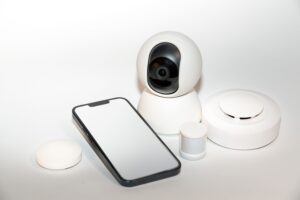
Viewing your CCTV cameras from your phone makes home and business security more convenient. Instead of relying only on a monitor connected to your CCTV recorder, you can check your property remotely, view live footage, receive motion alerts, and, with compatible cameras, communicate through two-way audio.
But how do you connect CCTV cameras to your phone? The process depends on whether you have a WiFi CCTV camera, an IP camera, a DVR, an NVR, or a 4G CCTV camera.
This guide explains how to connect CCTV cameras to your phone, what you need before starting, how remote CCTV viewing works, and what to do when your camera refuses to connect.
Can You Connect CCTV Cameras to Your Phone?
Yes. Most modern smart CCTV cameras and network-enabled CCTV systems can be connected to a smartphone through a manufacturer’s mobile application.
Once connected, you may be able to:
– View live CCTV footage
– Watch recorded videos
– Receive motion detection alerts
– Take screenshots
– Record video clips
– Control compatible PTZ cameras
– Use two-way audio on supported cameras
– Monitor your home or business remotely
The exact features depend on the CCTV camera, recorder, and mobile application.
A key requirement for CCTV remote viewing is connectivity. If you want to view cameras while away from your property, your CCTV system generally needs access to the internet through WiFi, wired internet, or a mobile network.
What You Need Before Connecting CCTV to Your Phone
Before setting up your CCTV camera mobile connection, prepare the following:
1. A Compatible CCTV Camera or Recorder
You need a camera, DVR, or NVR that supports remote viewing or mobile-app connectivity.
2. A Smartphone
Most CCTV mobile applications support Android and/or iPhone devices. Check the camera manufacturer’s requirements before installing an app.
3. The Correct Mobile App
CCTV manufacturers normally provide a dedicated application for their cameras or recorders
Avoid downloading random applications. Use the app recommended by the manufacturer.
4. Internet Connection
For remote CCTV monitoring, your camera or recorder needs a suitable internet connection. WiFi CCTV cameras connect through WiFi, while some DVR and NVR systems connect using Ethernet.
A 4G CCTV camera can use a SIM card and mobile data instead.
5. Camera or Recorder Login Details
You may need the device ID, QR code, serial number, username, password, or verification code when adding the CCTV system to your phone.
How to Connect a WiFi CCTV Camera to Your Phone
A WiFi CCTV camera is one of the simplest types to connect to a smartphone.
- First, install the manufacturer’s CCTV mobile app on your phone and create an account if required.
- Power on the camera and follow the setup instructions in the application. The app may ask you to connect the camera to your home’s WiFi network
- You may then be required to scan a QR code displayed by the app or camera, enter the WiFi password and wait for the camera to connect.
- Once successfully paired, the camera should appear in the application. You can then open it to view the live feed.
The exact process varies between manufacturers, so always follow the instructions supplied with your specific camera.
How to Connect an IP CCTV Camera to Your Phone
IP CCTV cameras transmit digital video through a network.
To connect an IP camera to your phone:
- First connect the camera to the appropriate network. Depending on the model, this may be through WiFi or an Ethernet cable.
- Install the manufacturer’s mobile application and add the camera using the device’s QR code, serial number, IP address, or other identification method supported by the system.
- After the camera is successfully added, you can access its live video through the app.
For remote access outside your local network, the IP camera needs an appropriate internet connection and remote-access configuration.
How to Connect a DVR CCTV System to Your Phone
Many homes and businesses use multiple CCTV cameras connected to a DVR.
To connect a CCTV DVR to your phone:
- First connect the DVR to a suitable internet connection, normally using an Ethernet cable to a router.
- Install the DVR manufacturer’s mobile application on your smartphone. Create an account if required and select the option to add a new device.
- The app may allow you to scan the QR code shown in the DVR’s settings or enter the device’s identification details manually.
- Once the DVR is added and online, the cameras connected to it should appear in the application.
This allows you to view multiple CCTV cameras from your phone rather than installing an individual app for every camera.
How to Connect an NVR CCTV System to Your Phone
An NVR works with network cameras, including many PoE CCTV systems.
- Connect the NVR to the network according to the manufacturer’s instructions. For remote access, the NVR should have a suitable internet connection.
- Install the appropriate mobile application and add the NVR using the device’s QR code, serial number, or other supported identification method.
- Once connected, you can usually view the cameras linked to the NVR through your smartphone.
NVR systems can be particularly useful for larger properties where several IP CCTV cameras need to be monitored from one application.
How to Connect a 4G CCTV Camera to Your Phone
A 4G CCTV camera provides another option for properties without fixed WiFi.
These cameras typically use a SIM card and mobile network data to communicate with the internet.
- Insert a compatible SIM card according to the manufacturer’s instructions, power the camera, and install its mobile application.
- Add the camera using the QR code or device identification details provided by the manufacturer.
- Once the camera has a suitable 4G connection, you can use the application to view the camera remotely.
This makes 4G CCTV useful for farms, construction sites, remote properties, and other locations where fixed internet may not be available.
How to View CCTV Cameras Remotely on Your Phone
After successfully connecting your CCTV system to its mobile app, remote viewing is usually straightforward.
Open the CCTV application, log in to your account, and select the camera or recorder you want to view.If the system is online, you should be able to access the live feed.
Depending on the camera, you may also be able to view recorded footage, control a PTZ camera, receive motion alerts or use two-way audio.
Remember that remote viewing depends on connectivity. Your phone also needs an internet connection, either through WiFi or mobile data, when you are away from the CCTV location.
How to Receive CCTV Motion Alerts on Your Phone
Many smart CCTV cameras support push notifications.
After adding the camera to the mobile app, open its settings and enable motion detection and notifications if those features are supported.
You may then receive an alert when the camera detects movement.
Some advanced CCTV systems can distinguish between people, vehicles and general movement. The exact detection features depend on the camera.
Motion alerts can be particularly useful for monitoring entrances, gates, shops, offices and other important areas.
CCTV Camera Not Connecting to Your Phone? Try These Fixes
If your CCTV camera is not connecting to your phone, check the following:
- Check the Internet Connection
- Make sure the camera or DVR/NVR is online and that your phone has internet access.
- Check the WiFi Password
- For WiFi CCTV cameras, confirm that the correct WiFi network and password have been entered.
- Check the CCTV App
- Make sure you are using the correct manufacturer application and that it is updated.
- Check the QR Code or Device ID
If the application cannot find the camera, carefully rescan the QR code or enter the device details again.
Check the Camera’s Power
A camera that has lost power will normally appear offline.
Restart the Equipment
Restarting the camera, router or DVR/NVR can sometimes resolve temporary connection problems.
If the problem continues, consult the manufacturer’s instructions or contact a qualified CCTV technician.
Does CCTV Need the Internet to Work on Your Phone?
It depends on what you want to do.
A CCTV system can sometimes record without the internet when footage is stored locally on an SD card, DVR or NVR.
However, if you want to access the camera remotely from your phone, the CCTV system generally needs internet or mobile network connectivity.
In simple terms:
Local recording: Internet may not be required.
Remote viewing from your phone: Internet connectivity is generally required.
This distinction is important when choosing CCTV cameras for your home or business.
How to Choose a CCTV Camera for Mobile Viewing in Kenya
When shopping for CCTV cameras in Kenya, consider whether mobile viewing is important to you.
Look for cameras or CCTV systems that offer:
– Reliable mobile applications
– Remote viewing
– WiFi or 4G connectivity
– Motion detection
– Night vision
– Local or cloud storage
– Two-way audio where required
– Android and iPhone compatibility
– Easy device setup
For homes and businesses in Nairobi with reliable internet, a WiFi or IP CCTV system may be suitable.
For locations without fixed internet, a 4G CCTV camera can provide remote access where mobile network coverage is available.
Frequently Asked Questions
Can I watch my CCTV camera on my phone?
Yes. Compatible CCTV cameras, DVRs and NVRs can be connected to a smartphone application for live and recorded viewing.
Can I connect CCTV to my phone without WiFi?
Some systems can use wired internet or 4G instead of WiFi. A 4G CCTV camera, for example, can use mobile data.
Can multiple phones view the same CCTV camera?
Many CCTV applications allow device sharing or multiple authorized users, although the exact number depends on the manufacturer.
Why is my CCTV camera offline on my phone?
Possible causes include loss of power, internet problems, incorrect WiFi details, an application problem, or a disconnected network cable.
Buy Reliable CCTV Cameras From MK Homestyles
Knowing how to connect CCTV cameras to your phone allows you to turn a traditional surveillance system into a more convenient remote monitoring solution.
Whether you have a WiFi CCTV camera, IP camera, DVR, NVR, or 4G CCTV camera, the basic process involves connecting the system to an appropriate network, installing the manufacturer’s mobile application, and adding the camera or recorder using its supported identification method.
For homeowners and businesses looking for CCTV cameras in Kenya, consider connectivity, mobile-app support, video quality, storage, night vision, and motion detection before making a purchase.
With the right CCTV system, you can keep an eye on your home, shop, office, or other property from virtually anywhere with a suitable internet or mobile connection.
Ready to enjoy remote CCTV monitoring from your phone? Choose reliable security solutions from MK Homestyles Kenya, including WiFi, 4G, and smart CCTV cameras designed for convenient home and business surveillance. Whether you want to monitor your home, shop, office, or remote property, MK Homestyles Agencies Limited can help you find the right CCTV system for your needs. Shop CCTV cameras and smart home security products from MK Homestyles today and stay connected to your property wherever you are.